
Surface Laptop Trackpad Popped Out: Causes and Fixes 2026
Surface laptop trackpad popped out? Learn the common causes, quick fixes, and when to repair or replace your Surface laptop trackpad.
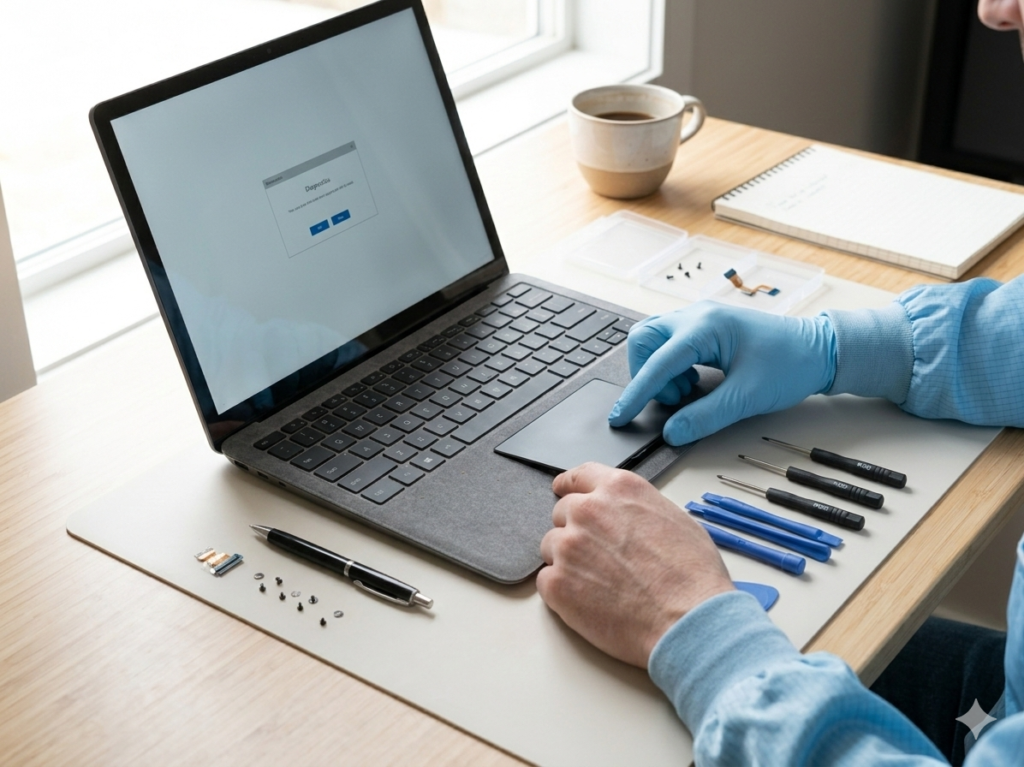
Surface Laptop Trackpad Popped Out: Causes, Safety Checks, Fix Options, White Screen Spots, and Desktop RAM in Laptops
If you noticed your Surface laptop trackpad popped out, don’t ignore it. A lifted or “popped” trackpad can be a simple mechanical issue—like adhesive or a loose bracket—but it can also be a warning sign of something more serious: battery swelling. At the same time, many people dealing with Surface hardware issues also search related questions like laptop display white spot and can I plug desktop RAM in laptop—because once one issue appears, you start checking everything.
This guide covers all of it in one place:
Why a Microsoft Surface laptop trackpad popped out
What to do immediately (safe steps)
How to tell if the battery is swelling
What fixes are safe vs risky (especially for Microsoft Surface Laptop 2 trackpad popped out)
What a white spot on a laptop display usually means and what you can do
Whether you can install desktop RAM in a laptop and what to do instead
1) Why Your Surface Laptop Trackpad Popped Out
A trackpad that lifts or separates from the palm rest can happen for a few reasons. The key is identifying which reason applies to your device, because the safest response depends on the cause.
Cause A: Battery swelling (the most important to rule out)
This is the big one. Lithium-ion batteries can swell due to age, heat, charging stress, manufacturing defects, or internal chemical breakdown. When a battery swells, it expands inside the chassis and pushes upward on surrounding components—often the keyboard deck and trackpad area.
Common signs include:
Trackpad lifting on one side
A gap forming around the trackpad
The laptop no longer sits flat on a table
A bulge under the keyboard/palm rest
Clicking feels “different” or uneven
If your Microsoft Surface laptop trackpad popped out, assume battery swelling until proven otherwise.
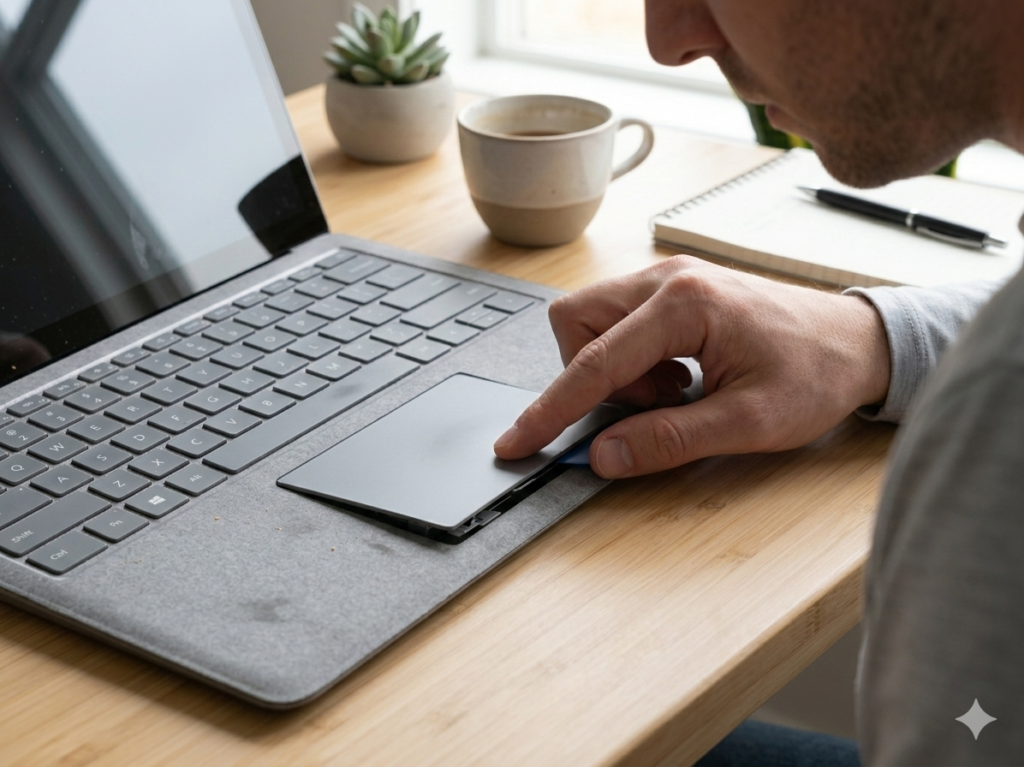
Cause B: Adhesive failure or weakened mounting
Some trackpads are secured partly by adhesives and partly by brackets. Over time, heat and flex can weaken adhesives or loosen tiny fasteners. This can lead to the trackpad shifting slightly or lifting at an edge.
This is more likely if:
The laptop is older but shows no bulge elsewhere
The lift is very small and localized
The laptop body remains perfectly flat
The trackpad still functions normally
Cause C: Impact, pressure, or chassis flex
If the laptop was dropped, squeezed in a backpack, or used on uneven surfaces, the chassis can flex and force the trackpad frame out of alignment.
This is more likely if:
The lift appeared right after a drop or hard press
The trackpad clicks inconsistently afterward
The palm rest area shows small bends or dents
Cause D: Heat stress and internal warping
Constant high temperatures (heavy workloads + charging + poor ventilation) can gradually warp plastics, soften adhesives, and stress internal mounts.
If you regularly use the laptop on a bed/blanket or in hot environments, this becomes more likely.
2) What to Do Immediately (Safety First)
When you see a Surface laptop trackpad popped out, do these steps before attempting any “fix.”
Step 1: Power off and unplug
Turn the device off completely and disconnect the charger. Avoid “sleep mode.” Use full shutdown.
Step 2: Do NOT press the trackpad back down
It’s tempting to push it into place. Don’t. If the battery is swelling underneath, pressure can damage the battery pouch. A punctured or crushed lithium battery is dangerous.
Step 3: Move it to a safe place
Place the laptop on a hard, non-flammable surface (like a desk) away from heat sources and flammable materials.
Step 4: Back up data (if safe)
If the laptop still runs normally and you can do it safely, back up important files quickly. If you notice strong bulging, heat, or odd smells, skip this and prioritize safety.
Step 5: Plan for service
If battery swelling is suspected, the safest next move is professional service (manufacturer or reputable repair shop).
3) How to Check for Battery Swelling (Without Opening Anything)
You can do a lot of checking externally.
Check A: Flatness test
Place the laptop on a perfectly flat surface. Does it rock? Does one corner float? If yes, swelling is very possible.
Check B: Trackpad gap test
Look closely around the trackpad edges. Is the gap widening over time? Is one side higher than the other?
Check C: Keyboard deck bulge
Look at the keyboard area from the side (eye level). Any curvature where it used to be flat is suspicious.
Check D: Heat + charging behavior
Swelling often happens along with:
Increased heat during charging
Shorter battery life
Sudden shutdowns
Fan behavior changes (if your model has fans)
None of these confirm swelling alone—but combined with a popped trackpad, they’re strong clues.
Check E: Smell or unusual sounds (rare but serious)
If you detect a sweet/chemical smell, or you hear subtle crackling/popping, stop using the device and move it to a safer location.
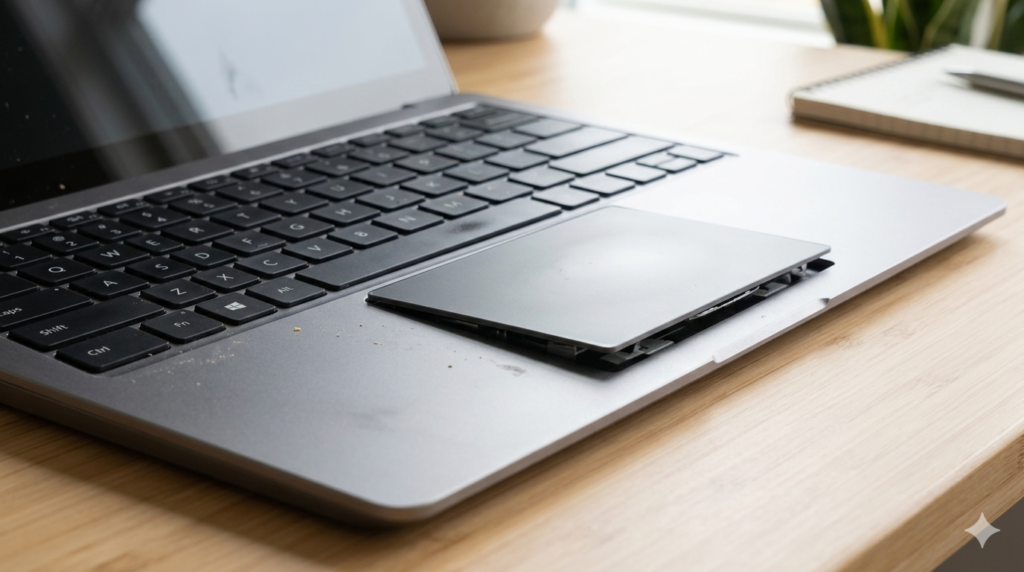
4) Microsoft Surface Laptop 2 Trackpad Popped Out: Any Special Notes?
If you’re specifically dealing with a Microsoft Surface Laptop 2 trackpad popped out, treat it the same way: battery swelling is the top concern.
The Surface Laptop line is thin, tightly packed, and not designed for easy user service. Even if the trackpad problem looks small, swelling can escalate quickly.
If you confirm there is no swelling, a repair shop may reseat the trackpad mount or adhesive. But if there’s any doubt, don’t DIY.
5) If There Is No Swelling: What Fixes Are Reasonable?
Only consider these options if you’re confident the battery is not swelling.
Option A: Professional reseat and inspection
Best choice. A repair shop can:
Remove the top layer safely
Inspect the battery for swelling
Reseat the trackpad
Replace weakened adhesives or mounts
Confirm nothing else is pushing upward
Option B: DIY “press and tape” solutions (not recommended)
You might see online tips like pressing it down and using tape. This can hide the problem temporarily and risks damage if swelling exists. It can also make future repairs harder.
Option C: Replace trackpad assembly
If the trackpad bracket or housing is damaged, replacement may be needed. On Surface devices, this often requires careful disassembly.
Important: If you are not experienced with electronics repair, it’s better to avoid DIY. Surface laptops are not beginner-friendly inside.
6) Laptop Display White Spot: What It Usually Means
Now let’s address your other keyword: laptop display white spot.
A “white spot” on an LCD screen usually means a physical issue in the panel layers or backlight diffusion system. It’s typically not a software problem.
Common causes
A) Pressure damage (very common)
If the lid was pressed (backpack pressure, closing with something on the keyboard, or a strong impact), the LCD layers can be compressed. This produces bright “cloud” spots or light patches—often visible on dark backgrounds.
B) Backlight diffuser issues
LCD screens have diffusion layers that spread light evenly. If these layers shift or deform, bright spots can appear.
C) Internal panel defect
Sometimes the panel has manufacturing irregularities or develops issues over time.
D) Stuck pixels vs white spots
A stuck pixel is typically a tiny single point. A “white spot” is usually a larger patch or blotch. They’re different problems.
Can you fix a laptop display white spot?
Usually, no—at least not permanently—because it’s often physical damage inside the panel.
What you can do:
Lower brightness (sometimes makes it less noticeable)
Avoid pressing on the screen
Use a darker wallpaper/theme if it’s minor
Replace the display if it’s severe (best real solution)
Avoid: pressing or massaging the spot. That can worsen internal damage.
7) Can I Plug Desktop RAM in Laptop?
Short answer: No, you generally cannot plug desktop RAM into a laptop.
Why not?
Most laptops use SO-DIMM memory modules (shorter, smaller). Desktops typically use DIMM modules (longer, full-size). They have:
Different physical size
Different notch position
Different electrical layout expectations
Even if the RAM is the same generation (DDR4 vs DDR4), the physical format is not compatible.
Are there any exceptions?
A few edge cases exist (specialized hardware, adapters, or rare systems), but for normal consumer laptops the answer is still no.
What you should do instead
If you want to upgrade laptop RAM:
Find your laptop model’s RAM type (DDR4 SO-DIMM, DDR5 SO-DIMM, etc.)
Check if your RAM is upgradeable or soldered
Confirm max supported capacity and speeds
Buy compatible SO-DIMM sticks
Common laptop RAM limitations
Some laptops have RAM soldered and cannot be upgraded
Some have one slot + some soldered RAM
Some accept only certain capacities per slot (e.g., 16GB max per slot)
If you want, tell me the exact laptop model (not just “Surface laptop”) and I can tell you whether it supports upgrades and what RAM type it uses.
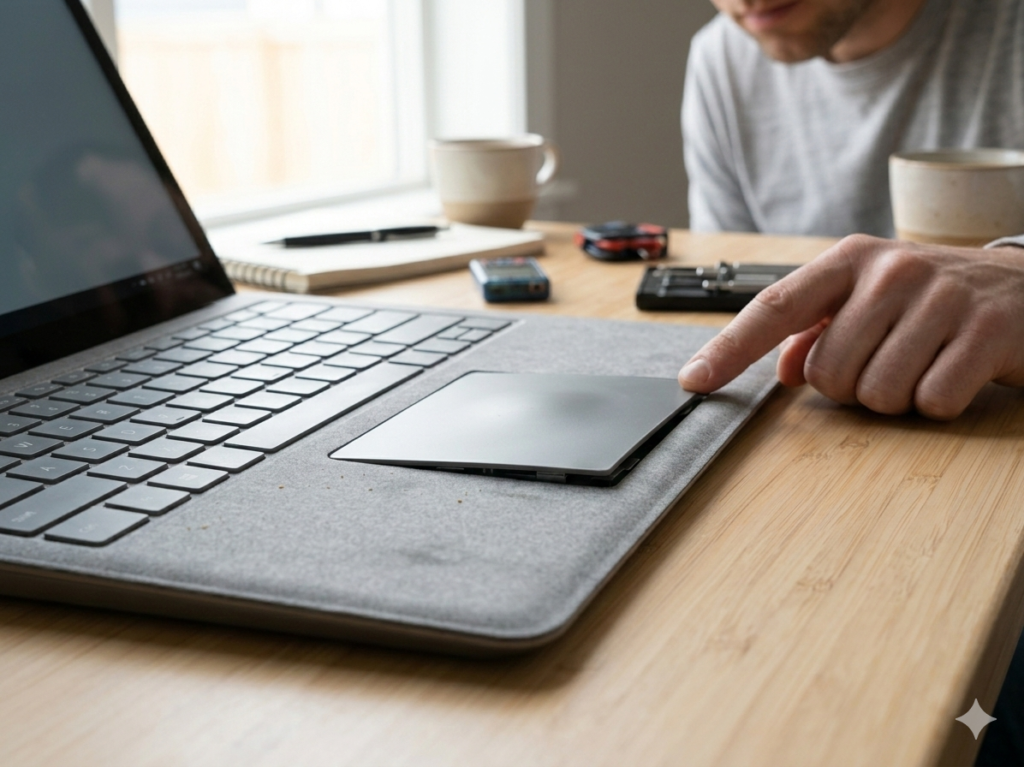
8) Putting It All Together: What Your Symptoms Might Mean
If you have:
Surface laptop trackpad popped out
plus a laptop display white spot
and you’re thinking about hardware changes like RAM
Here’s the practical approach:
Step 1: Treat the popped trackpad as urgent
Because battery swelling is possible, prioritize that first.
Step 2: Screen white spot is usually separate
A white spot is usually panel-related and not directly connected to trackpad lifting. But both can happen from pressure, heat, or aging.
Step 3: RAM question is independent
The RAM question is likely unrelated—just part of diagnosing/upgrading. Desktop RAM does not fit laptops.
9) Quick FAQ
Is a popped-out trackpad always battery swelling?
Not always—but it’s common enough that you should assume swelling until you confirm otherwise.
Should I keep charging the laptop if the trackpad is lifted?
No. Stop charging until the device is evaluated, especially if you suspect swelling.
Can the trackpad be “snapped” back in?
Sometimes, if it’s a mount issue. But it’s risky to press anything down if swelling is the cause.
Can white spots on screens go away?
Usually not. They may become less noticeable at lower brightness, but physical panel damage typically remains.
Can I upgrade Surface Laptop RAM?
Many Surface laptops have soldered RAM (not upgradeable). It depends on the exact model.